How to Add Captions to a Video on iPhone (2026)
Apple's Clips app is gone for new users and iMovie has no auto captions. The ways that still work on iPhone, free apps to browser tools, step by step.
By the Capsubs team · Updated · 3 min read
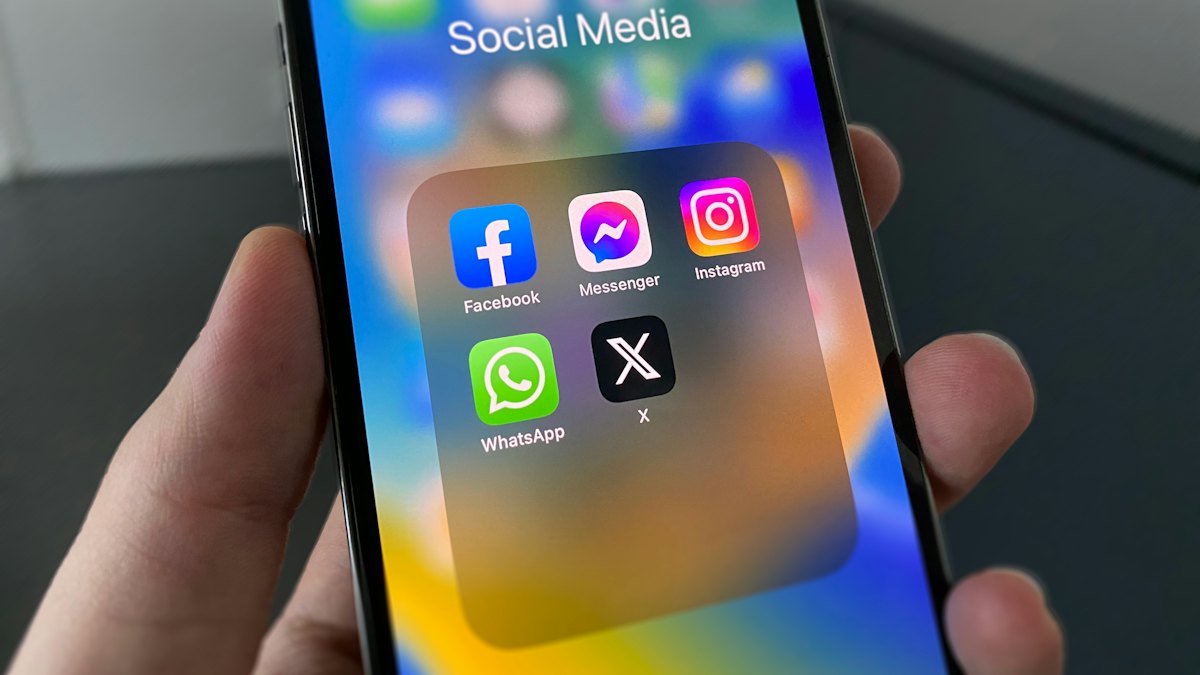
The easiest way to add captions to a video on iPhone is to use the captions tool in the app you're posting to (TikTok, Instagram or YouTube), or to open a web caption tool in Safari, upload the clip from Photos and download it with captions burned in. Apple's own options are limited: Clips, which made automatic "Live Titles", stopped being available to new users on October 10, 2025, and iMovie only lets you type text by hand.
Your options at a glance
| Method | Auto captions? | Cost | Captions in the file? |
|---|---|---|---|
| TikTok / Instagram / YouTube app | Yes | Free | Only on that platform |
| YouTube Create app | Yes, clips up to 60 s | Free | Yes |
| CapCut app | Yes | Free plan, Pro features vary | Yes |
| A web tool in Safari (e.g. Capsubs) | Yes | Free to start | Yes |
| iMovie | No, typed by hand | Free | Yes |
| iPhone Accessibility subtitles | Shown while you watch | Free | No |
"Captions in the file" matters if you want to post the same video to several apps: burned-in captions travel with the video.
Option 1: Caption in the app you post to
If the video is only going to one platform, its own tool is the quickest:
- TikTok: tap Captions on the editing screen. Full steps.
- Instagram Reels: add the Captions sticker. Full steps.
- YouTube Shorts: tap Captions in the Shorts editor where available. Full steps.
Option 2: A web tool in Safari (no app to install)
Safari can run a full caption tool. With Capsubs:
- Open capsubs.com in Safari and sign in (or try it without an account on a clip up to 60 seconds).
- Tap New Video and pick the clip from Photos.
- Choose Highlight, Boxed or Classic, a highlight color and top, middle or bottom. The preview plays your own clip with the captions on it.
- Turn on Check words before burning in if you want to fix words first.
- Download the MP4 and save it to Photos, then post it anywhere.
Free accounts get 1 video every 2 weeks with no watermark, up to 3 minutes and 500MB.
Option 3: YouTube Create or CapCut (apps)
- YouTube Create is Google's free editor for iPhone (XR or newer, iOS 17+) and Android. Open a project, tap Captions, choose the language and tap Generate; you can edit words and style. Google notes it can't generate captions for clips longer than 60 seconds, and it is only available in some countries.
- CapCut has auto captions on iPhone under Captions → Auto captions. CapCut's own pages disagree on whether this is free or Pro, so check your account. See how to add captions in CapCut.
Option 4: iMovie (manual)
iMovie has no auto-caption feature. You add text with Titles: select a clip, tap the T, choose a style and type. To make the text change, you split the clip at each new line and add a new title to each piece. It works for one or two lines, but it is slow for a talking-head video.
What about iPhone's built-in subtitles?
Settings → Accessibility → Subtitles & Captioning controls how captions display while you watch. On recent models with iOS 27, iPhone can even generate subtitles for videos you play. None of this adds captions to the video file, so your viewers won't see them.
FAQ
Is there a free way to auto-caption on iPhone? Yes: the built-in tools in TikTok, Instagram and YouTube, YouTube Create (clips up to 60 s), and Capsubs Free (1 video every 2 weeks, no watermark).
Can I still use Apple Clips? If you already had it installed you can keep using it on iOS 26 or earlier, but Apple stopped updating it and removed it for new downloads in October 2025.
How do I keep captions out of the way of the buttons? Put them in the middle third of the frame. See safe zones.
Caption your next video in a minute
Upload a TikTok, Reel or Short, pick a style and get it back with word-by-word captions burned in. Free to start, no watermark.