Open vs Closed Captions: Which Should You Use?
Open captions are burned in and always visible; closed captions can be switched off. How they compare and why short-form creators often use both.
By the Capsubs team · Updated · 2 min read
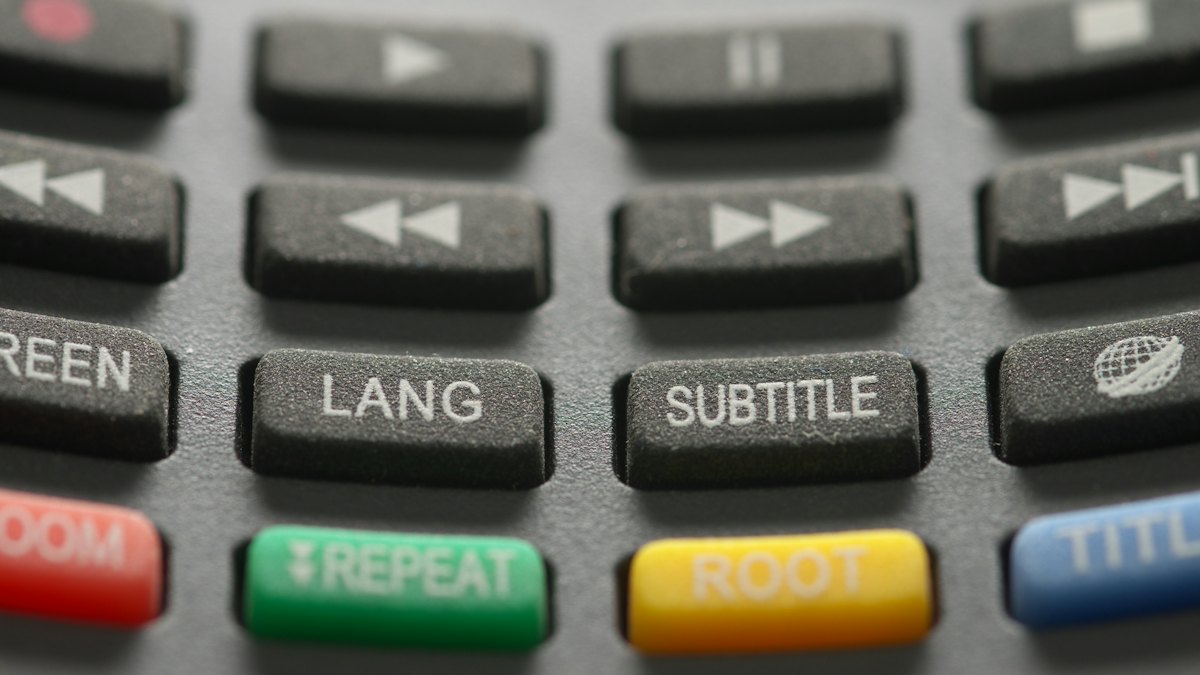
Open captions are burned into the video image, so every viewer sees them and nobody can turn them off; closed captions are a separate text track (like an SRT file) that viewers switch on, and that the player styles. For TikTok, Reels and Shorts, open captions are usually the better choice because feeds autoplay muted; for YouTube videos, courses and accessibility requirements, add closed captions too.
Compared
| Open (burned-in) | Closed (CC track) | |
|---|---|---|
| Visible by default | Always | Only when switched on |
| Who controls the look | You | The viewer and player |
| Custom fonts, color, word highlight | Yes | No |
| Viewer can resize, restyle or hide | No | Yes |
| Fix a typo after publishing | Re-export and re-upload | Edit the track |
| Multiple languages | One per video file | Many tracks |
| Searchable by the platform | Only if it reads on-screen text | Yes, as text |
| Works when reposted elsewhere | Yes, it's in the file | Usually lost |
Why short-form creators use open captions
- Muted autoplay. The feed plays without sound; open captions work without a tap.
- Style. Word-by-word highlighting, bold fonts and brand colors are only possible when the text is part of the picture.
- One file everywhere. The same video goes to TikTok, Reels and Shorts without captioning three times.
Why closed captions still matter
- Accessibility. Viewers who rely on captions can set size, color and contrast that work for them. That matters for deaf and hard-of-hearing viewers and for low vision.
- Accuracy fixes. You can correct a closed-caption track after posting.
- Translation. YouTube can auto-translate a caption track into other languages.
- Compliance. Rules such as the US ADA and the European Accessibility Act have pushed many organisations toward proper caption tracks for long-form and professional content.
The best of both
On YouTube, many creators burn in captions for the look and also publish a caption track in YouTube Studio. On TikTok and Instagram, if you burn captions in, turn off the platform's auto captions for that post so the two sets of text don't overlap.
How to make each
- Open: a caption tool that exports video, such as Capsubs (word-by-word, burned in), CapCut or Submagic, or FFmpeg with a subtitle file. Guide: how to burn captions into a video.
- Closed: YouTube Studio → Subtitles; LinkedIn's SRT upload on desktop; TikTok's auto-generated captions; Instagram's auto-generated captions toggle.
FAQ
Are burned-in captions accessible? They help everyone watching on mute, but viewers can't adjust them. For full accessibility, pair them with a closed-caption track where the platform supports it.
Can I get an SRT file from Capsubs? Not currently; Capsubs exports the captioned video. Tools like Clipchamp and CapCut (desktop/web) can export SRT.
Does TikTok use closed captions? TikTok's auto-generated captions behave like closed captions: viewers can hide them.
Caption your next video in a minute
Upload a TikTok, Reel or Short, pick a style and get it back with word-by-word captions burned in. Free to start, no watermark.